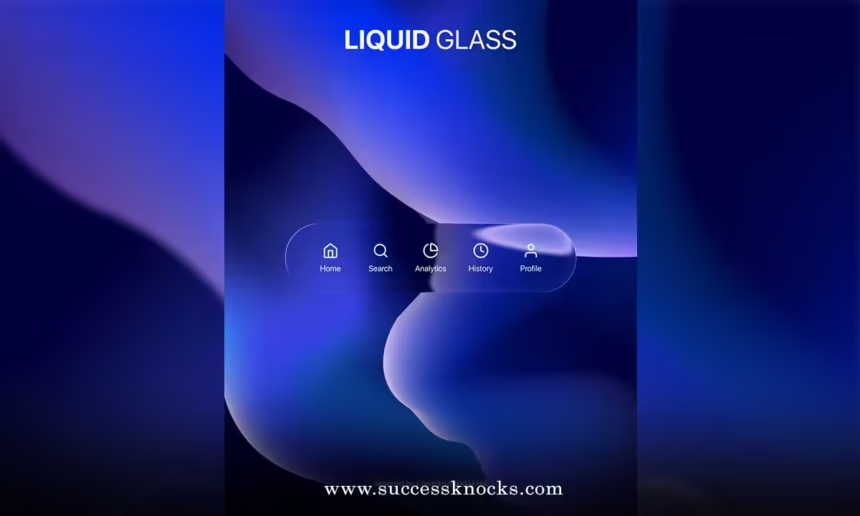
Hey friend, if you just upgraded to iOS 26 and you’re staring at that gorgeous new interface wondering how to make it truly yours, you’re in the right place. iOS 26 Liquid Glass design customization tips will help you tweak, tone down, or amp up Apple’s stunning translucent material until your iPhone feels like a personal masterpiece.
Liquid Glass is ebiggest visual redesign since iOS 7. It turns buttons, icons, navigation bars, Control Center, and even app elements into dynamic, reflective surfaces that behave like real glass—refracting light, shifting with your wallpaper, and adapting between light and dark modes. It looks incredible on most devices, but not everyone loves maximum transparency. Some find it too glassy for daily readability, while others want to push the effect even further for that ultra-premium vibe.
In this guide, I’ll share practical, easy-to-follow iOS 26 Liquid Glass design customization tips that work whether you’re a beginner or a power user. We’ll cover everything from the official settings to hidden tricks, Lock Screen tweaks, Home Screen magic, and more. By the end, you’ll know exactly how to personalize your iPhone so it matches your style perfectly.
And remember, for the best experience with all these fresh visuals, make sure your device is fully up to date. If you haven’t yet, check out this complete walkthrough on how to install iOS 26.3.1a background security improvement update on iPhone to keep your security tight while enjoying the new design.
What Exactly Is Liquid Glass in iOS 26?
Think of Liquid Glass as Apple’s new “material” for the entire operating system. Unlike the flat designs of older iOS versions, Liquid Glass is translucent and fluid. It reflects and refracts whatever is behind it—your wallpaper, app content, or even the time of day—creating beautiful depth and movement.
You’ll see it everywhere:
- App icons with glassy highlights
- Control Center and Notification Center panels that float gently
- Tab bars that shrink or expand dynamically
- Buttons and sliders that morph as you interact with them
- Lock Screen clock and widgets with adjustable transparency
The magic happens in real time. Tilt your phone, change wallpapers, or switch from Light to Dark Mode, and Liquid Glass adapts instantly. It’s elegant, immersive, and a little addictive once you start playing with it.
But here’s the best part: Apple gave us real tools to customize it instead of forcing one look on everyone.
Official Way to Customize Liquid Glass: Clear vs Tinted
One of the simplest yet most powerful iOS 26 Liquid Glass design customization tips is switching between Clear and Tinted modes.
Here’s how to do it step by step:
- Open the Settings app on your iPhone.
- Tap Display & Brightness.
- Scroll down and tap Liquid Glass.
- Choose between:
- Clear — The default ultra-transparent look that shows maximum refraction and lets your wallpaper shine through.
- Tinted — Increases opacity and adds more contrast system-wide. This makes text and controls easier to read without killing the glassy aesthetic entirely.
Many users who found the original Clear mode a bit too “see-through” love switching to Tinted. It keeps the modern feel but makes menus, search bars, and notifications pop better in bright light.
Pro tip: Try both options with your favorite wallpaper. The difference is dramatic, especially on vibrant or dark wallpapers.
Fine-Tune Liquid Glass on Your Lock Screen
The Lock Screen is where Liquid Glass shines brightest—literally. The clock and widgets now use this material, and you can adjust transparency directly.
Follow these iOS 26 Liquid Glass design customization tips for the Lock Screen:
- Press and hold an empty spot on your Lock Screen until the Customize button appears.
- Tap Customize > Lock Screen.
- Tap the clock area. A new slider for Liquid Glass / Transparency pops up.
- Drag the slider left for a more solid, readable look or right for maximum glassy effect.
- Tap the wallpaper thumbnail in the top-left to save, then choose Set as Wallpaper Pair if you want matching Home and Lock Screens.
This per-element control lets you keep the clock super glassy while making widgets a bit more opaque—perfect balance!
You can also experiment with different wallpaper types. Spatial Scenes (the new 3D generative wallpapers) interact amazingly with Liquid Glass, creating depth that feels almost holographic.
Home Screen Customization Tips for Liquid Glass Vibes
Your Home Screen got a major glow-up too. Here’s how to make icons, widgets, and folders play nicely with Liquid Glass:
- Press and hold any empty area on the Home Screen.
- Tap Customize at the top.
- Now you have options for:
- Background tint (Light, Dark, or Auto)
- Icon size (Small or Large)
- Icon style: Default, Dark, Clear, or Tinted
Choosing Clear on icons gives them that floating Liquid Glass look that matches the rest of the system. Tinted adds subtle color overlays based on your wallpaper for a more cohesive, artistic feel.
Want even more control? Tap the little iPhone icon in the customization panel to sample colors directly from your wallpaper using the eyedropper tool. This creates perfectly matched tinted icons that feel custom-made.
Widgets also benefit—new options let them show full-color photos or spatial scenes while sitting on Liquid Glass layers. Try stacking a weather widget with a glassy border for that premium look.
Accessibility Tricks to Tone Down or Enhance Liquid Glass
Not every customization lives in the obvious menus. Accessibility settings give you powerful global controls:
- Go to Settings > Accessibility > Display & Text Size
- Toggle Reduce Transparency — This instantly makes all Liquid Glass elements more solid and easier on the eyes. Great if you find the default effect distracting.
- Increase Contrast — Boosts readability even further.
- In Accessibility > Motion, turn on Reduce Motion if the dynamic animations feel too much.
These tweaks are reversible anytime, so experiment freely. Many people use Reduce Transparency during the day for work and turn it off in the evening for that wow-factor home screen.
Dark Mode + Liquid Glass = Next-Level Look
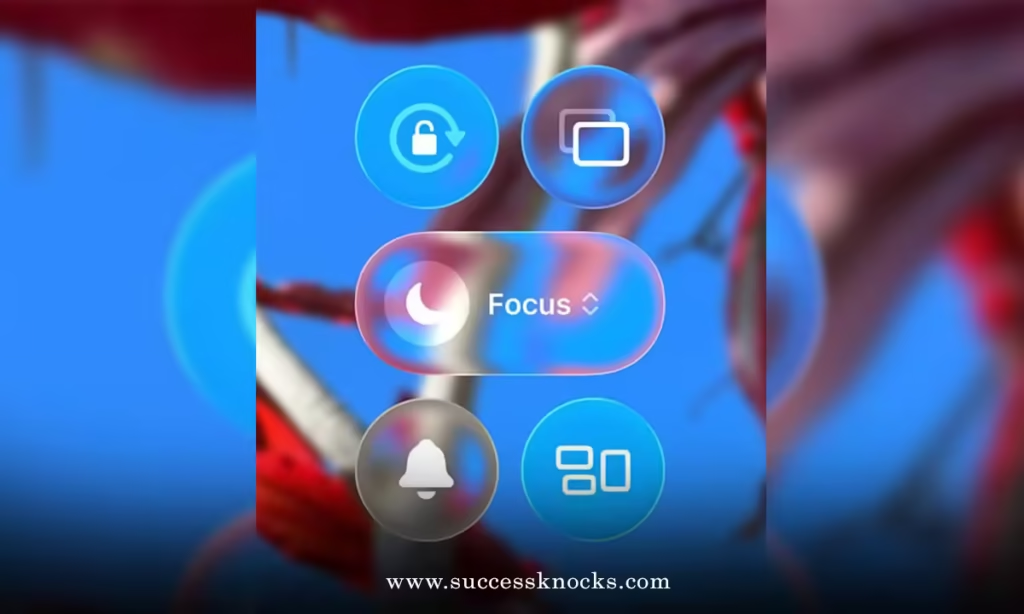
Here’s a quick but effective tip: Liquid Glass looks dramatically different in Dark Mode. The translucency becomes richer and the reflections subtler.
Simply go to Settings > Display & Brightness and switch to Dark (or set it to Automatic). Pair this with Tinted Liquid Glass and a deep wallpaper, and you get an ultra-dark, sophisticated interface that many call “stealth mode.”
Advanced iOS 26 Liquid Glass Design Customization Tips
Want to go deeper? Try these:
- Control Center: Pull it down and long-press the background to customize modules. The glassy panels can be rearranged and even resized.
- App-Specific Tweaks: Some apps like Safari, Music, and Photos now have their own Liquid Glass tab bars and controls. Check inside individual apps for extra sliders.
- Wallpaper Synergy: Choose wallpapers with strong contrast or gradients. Nature photos, abstract art, or Spatial Scenes react best with Liquid Glass.
- Icon Packs via Shortcuts: While Apple doesn’t allow full third-party icon replacement yet, you can create custom Shortcut icons with glassy effects and place them on the Home Screen.
Combine multiple tips: Tinted system-wide + Clear icons + Dark Mode + Spatial wallpaper often creates the most stunning results.
Common Issues and Quick Fixes
Sometimes Liquid Glass can make text harder to read in certain lighting. Solution? Switch to Tinted or enable Increase Contrast. Battery impact is minimal since it’s all GPU-accelerated, but if you notice any drain, Reduce Transparency helps.
If the design feels overwhelming after trying everything, remember you can always revert to Clear or even Reduce Transparency completely. Your iPhone, your rules.
Why Bother Customizing Liquid Glass Anyway?
Because your iPhone should feel like an extension of you—not a one-size-fits-all device. These iOS 26 Liquid Glass design customization tips let you balance beauty and usability exactly how you like it. Whether you want maximum transparency for that futuristic glass look or a more grounded, readable interface, Apple finally gave us the tools.
And don’t forget—keeping your software updated is key to unlocking all these features safely. Head back to that guide on how to install iOS 26.3.1a background security improvement update on iPhone if your device is lagging behind.
Now it’s your turn. Open Settings, start experimenting, and watch your iPhone transform. Which look will you go for—crystal Clear, cozy Tinted, or something uniquely yours?
Drop your favorite combination in the comments—I’d love to hear what works for you!
Conclusion
Mastering iOS 26 Liquid Glass design customization tips turns a beautiful update into a truly personal experience. From the simple Clear/Tinted toggle in Display & Brightness to Lock Screen sliders, Home Screen icon styles, and Accessibility helpers, you now have everything you need to make Liquid Glass work for you.
Play around, combine options, and remember there’s no wrong way—only your way. Your iPhone will feel fresher, more delightful, and perfectly tailored every single time you pick it up.
Enjoy the new design, stay creative, and keep that iPhone shining!
For more on keeping your iOS 26 experience secure, read: how to install iOS 26.3.1a background security improvement update on iPhone.
FAQs
1. Where do I find the Liquid Glass settings in iOS 26?
Head to Settings > Display & Brightness > Liquid Glass. Here you can switch between Clear and Tinted modes instantly.
2. Does customizing Liquid Glass affect performance or battery?
No noticeable impact for most users. The effects are hardware-accelerated, but using Reduce Transparency can slightly help on older devices.
3. Can I make Liquid Glass completely disappear?
Not fully, but enabling Reduce Transparency in Accessibility makes elements much more solid and closer to older iOS looks.
4. Do all apps support Liquid Glass customization?
System apps and many third-party apps updated for iOS 26 do. Look for new tab bars and controls inside apps like Music or Safari.
5. Is Liquid Glass available on all iPhones running iOS 26?
Yes, but the visual quality is best on newer models with advanced displays. Older supported devices still get the core effects.