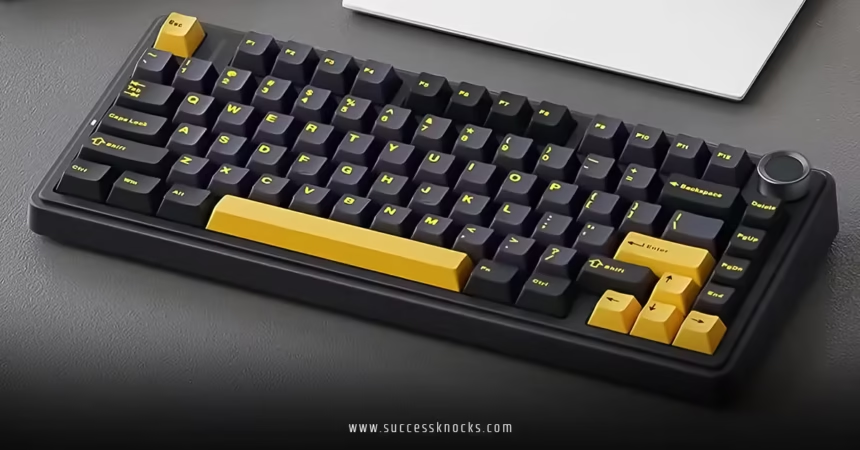
Aula Keyboard Driver: Where to Download It and How to Set It Up
The Aula keyboard driver is the software that allows key remapping, macro programming, and even control RGB lighting zone control on Aula mechanical keyboards. There are many individual instances of the driver software and you need to know which one of those you need, and where to download it, based on your keyboard. This article will guide you to the official sources and will help you understand and understand how to avoid the common mistakes that lead to failed installations.
Key Takeaways
- Aula does not have a single unified driver for all their keyboards. Most of the standard mechanical keyboards use a Windows installer, while the browsers-based driver for the Hall Effect keyboard models like the WIN60HE and HERO68 HE may vary.
- Your region determines the source you use for the download: AULA has separate portals for its global store, international clients, and mainland China; using the incorrect one can provide you an incompatible file.
- Basic input works without any software installed. The driver is only used for customizability such as software for key remapping, macro programming software, RGB lighting control software, and firmware updating.
- Support for mac computers is sometimes available via browser-based drivers for newer models, but it doesn’t apply to all models. It’s important to check the model you own rather than assuming it will be supported.
- It is more important to have the model number rather than the name of the keyboard. Identical looking keyboards can require different versions of the driver based their date codes.
What the Aula Keyboard Driver Actually Does
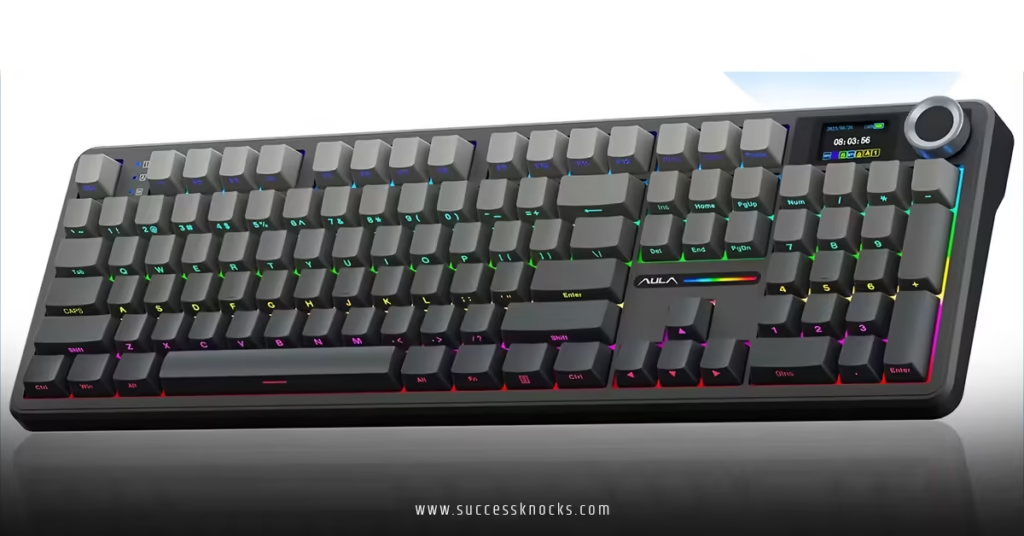
The Aula keyboard driver is better described as a configuration tool, or lightweight driver, since your keyboard can still be used for typing without it, via the USB HID standard. The key mapping, macro recorder, RGB lighting setter, and even firmware flasher and P-Switch modification of magnetic switch keyboards are all accessible via this tool.
You should understand that this software suffers from a case of scope and feature bloat, just like Razer Synapse or Logitech G Hub; the difference is that Aula’s software has a smaller footprint and is easier to use. Also, note that there is not cloud syncing of settings across devices, so theres generally a trade-off for a lower price.
Where to Download the Correct Driver
You need to know your keyboard’s model to get the appropriate driver. The model label is included with the keyboard. You can also check your order confirmation email. AULA says some F108 Pro models require different drivers depending on the date code for the production batch from which the keyboard was made. If the wrong driver is installed, a complete uninstall and system reset would be required.
1. Identify your precise model number (e.g. F75 Pro, S98 Pro, WIN60HE). Remember from which store you purchased it.
2. Navigate to the appropriate official site.
– Buy from international site, go to the download section of aulagaming.com where drivers are provided by model and an “AULA Hub” download is available along with F75 Pro, F99, S75 Pro, F108 Pro and HERO68HE.
– Buy from international site, go to the google drive of aulastar.com where drivers are available by model.
– Buy from Mainland China, the appropriate site is aulacn.com where AULA explicitly directs Chinese users away from the international site.
3. For magnetic switch (Hall Effect) keyboards**, you can bypass the downloadable installer. Devices of this type that have “Online Drivers” require you to visit the unique URL for the device in Chrome and grant permission for the driver to run as a browser extension. Win60HE and Hero68HE have the former and use the URL device.aulacn.com.
4. Download the file for your model and extract it if it is a ZIP file. Once it is unpacked, run the instaler. Although Windows will show an “unrecognized app” message, this is a common warning with smaller applications and is not a cause for concern if you downloaded from one of the sources outlined in the article.
5. Connect the keyboard via USB (or put it in pairing mode) before opening the software. Most driver tools from Aula require the device to be connected.
Your keyboard should now be setup however it is also worth checking your setup as a whole to ensure things are optimized. If you are working towards a complete gaming or work PC setup, our coverage of PC hardware and gaming gear is an excellent next step in your journey for related buying and setting up decisions.
Setup and Compatibility: What to Expect
As soon as you download and install the software, it will identify your keyboard and adjust to fit your physical layout (60%, 65%, 75% TKL, or FULL size). After getting oriented with the software, most users spend their first few minutes remapping a few keys and setting up one or two macros and choosing a lighting profile.
| Keyboard type | Driver format | Typical use case |
|---|---|---|
| Standard mechanical (F75 Pro, S75 Pro, F108 Pro, etc.) | Downloadable Windows installer (.exe) | Key remapping, macros, RGB, firmware updates |
| Magnetic/Hall Effect switch (WIN60HE, HERO68HE, MINI60 HE) | Browser-based online driver (Chrome) | Actuation point adjustment, rapid trigger settings, lighting |
| Mouse and accessory line | Separate driver, listed alongside keyboard drivers on the same download pages | DPI, macro, and lighting configuration |
Mac compatibility is limited and model-specific. AULA’s own product pages note that certain newer models, including some F108 Pro variants, offer Mac-compatible configuration through the browser tool, but this is not true across the entire lineup [2]. If Mac support matters to your purchase decision, check the listing for your exact model before buying, rather than assuming based on another Aula keyboard you’ve used.
Common Mistakes and Practical Considerations
Downloading from the wrong regional portal.
A driver built for the China-market variant of a keyboard can behave differently, or fail to recognize a global-market unit, because firmware and driver versions aren’t always identical across regions.
Ignoring the production date code on dual-version models.
As noted above, some F108 Pro units split into “Driver Version A” and “Driver Version B” based on date code, and installing the wrong one is a common cause of the software failing to detect the keyboard [1].
Assuming one universal “Aula Hub” covers every keyboard.
While a general Hub driver exists on the global store’s download page, magnetic switch keyboards specifically require their own browser-based tool instead, so if your keyboard isn’t detected by the Hub, that’s often the reason.
Not resetting to factory settings when switching driver versions.
If you install the wrong driver you have to uninstall the old software and install the correct driver. Then you have to hold the FN + ESC key for 3 seconds while connected to reset the keyboard to factory defaults [1].
Overlooking that basic typing never requires the driver.
If you just want to use the keyboard traditionally, you can skip the installation because you don’t need the software until you want to do something with it.
Final Perspective
The most reliable path with Aula’s driver software isn’t finding a single “best” download link, it’s matching the driver to your exact model number, date code, and region before you install anything. Get that match right, and the rest of the setup is fast and unremarkable, which is really the point of good peripheral software in the first place.
FAQs
Do I need Aula keyboard software for basic use?
Nope, your Aula keyboard works plug-and-play out of the box. But for unlocking Aula keyboard software’s full suite of features like lighting effects, grab it to supercharge your experience.
How do I update Aula keyboard software?
Open the app, navigate to the settings tab, and hit “Check for Updates.” It pulls the latest from Aula’s servers—easy peasy, and crucial for bug fixes in 2025 builds.
Is Aula keyboard software compatible with Mac?
Officially Windows-only, but third-party tools like Karabiner mimic remaps. For full Aula keyboard software glory, stick to PC or dual-boot.
Can I use Aula keyboard software for multiple keyboards?
Yes! It detects connected Aula devices sequentially. Switch profiles per board for a unified ecosystem—ideal for desk warriors with spares.
Is a driver required to use an Aula keyboard?
No. Aula keyboards can be used for basic typing via USB or Bluetooth. The driver is required if key/macro/RGB customization is desired.
Is Aula software compatible with Mac?
Only for some models. Certain models of the F108 Pro series feature a configurable browser-based tool in the latest firmware that is Mac compatible. This feature is not available for the entire Aula product line, so check for your model’s compatibility on the product page.
Why does the Aula driver not detect my keyboard?
The most common issues are either downloading the wrong model and/or region driver, or downloading the wrong version for a dual-version model like some F108 Pro models. Uninstalling the driver, downloading the correct version for your model and date code, and connecting the keyboard before running the software typically resolves this issue.
Where do I download the driver for a magnetic switch (Hall Effect) Aula keyboard?
Magnetic switch models like WIN60HE and HERO68HE don’t use a downloadable installer. Instead, you visit the model-specific web driver address in Chrome and grant browser access when prompted, rather than running a traditional .exe file.
Which official website should I use to download the Aula driver?
It depends on your region: aulagaming.com serves the global store, aulastar.com serves international customers outside China (hosting files via Google Drive), and aulacn.com is the correct portal for mainland China customers.
Read More:successknocks.com