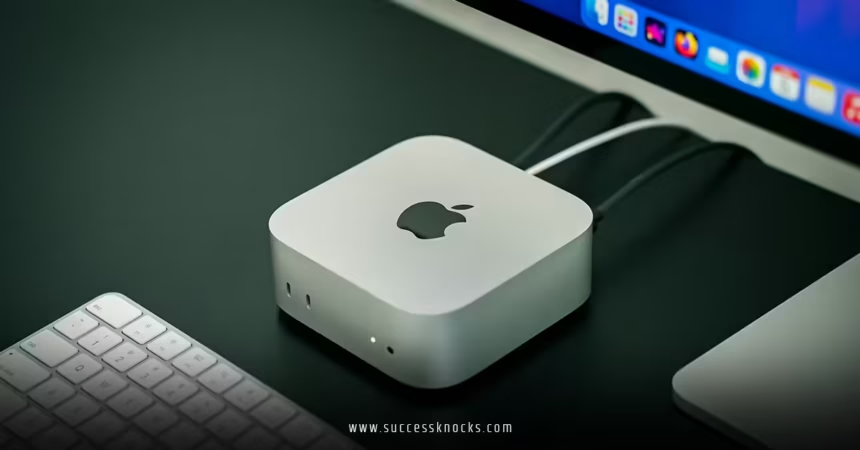
How to install Moltbot on Mac Mini is one of the most searched questions among AI enthusiasts right now. If you’ve been eyeing that sleek little Mac Mini sitting on your desk (or thinking about grabbing one just for this), you’re in the right place. Moltbot is an incredibly powerful, open-source personal AI assistant that runs locally on your hardware. Think of it as your own always-on sidekick—handling emails, browsing the web, running terminal commands, managing calendars, and chatting with you across apps like WhatsApp, Telegram, or even iMessage.
Unlike cloud-based assistants that send your data to distant servers, Moltbot lives on your machine, giving you full control and privacy. Many people dedicate a Mac Mini to it for 24/7 availability—quiet, energy-efficient, and powerful enough for local LLMs or API calls to models like Claude or GPT. Ready to dive in? Let’s walk through how to install Moltbot on Mac Mini from scratch, step by careful step.
Why Choose a Mac Mini for Moltbot?
Before we jump into the installation, let’s quickly cover why a Mac Mini makes such a popular choice for running Moltbot. Apple’s M-series chips (M1, M2, M4, etc.) deliver amazing performance per watt, meaning your mini can hum along quietly without spiking your electricity bill. It has excellent support for local AI models via frameworks like MLX, and macOS-specific features shine here—Moltbot can use screen recording, camera access, or even iMessage integration via tools like BlueBubbles.
People often ask: Do I really need a dedicated Mac Mini? Not always, but if you want rock-solid uptime without tying up your daily laptop, yes—it’s perfect. Imagine your AI assistant quietly working in the background while you sleep. Sounds futuristic? It is, and it’s here now.
Prerequisites Before You Start How to Install Moltbot on Mac Mini
You can’t just dive straight in—let’s make sure your setup is ready. Here’s what you’ll need:
- A Mac Mini running macOS Ventura (13) or later (Sonoma or Sequoia recommended for best compatibility).
- At least 16GB RAM (32GB+ ideal if running local models).
- Stable internet for initial setup and API keys (you can go offline later).
- Node.js installed (version 20 or higher, preferably 22+).
- Homebrew (the missing package manager for macOS)—if you don’t have it, install it first.
- An API key from a provider like Anthropic (Claude), OpenAI, or a local model setup via Ollama/LM Studio.
Quick tip: Open Terminal (Cmd + Space, type “Terminal”) and run node -v. If it’s not installed or outdated, grab it via Homebrew:brew install node
Also, install Homebrew if missing:/bin/bash -c "$(curl -fsSL https://raw.githubusercontent.com/Homebrew/install/HEAD/install.sh)"
With those checked off, you’re primed for how to install Moltbot on Mac Mini.
Step 1: Install the Moltbot CLI – The Gateway to Everything
The easiest and most reliable way to get Moltbot running is through its global CLI tool. This handles the gateway (the core control plane), daemon setup, and onboarding.
Open Terminal and run one of these install commands (pick your package manager—npm is simplest for beginners):
Using npm (recommended for most Mac users):npm install -g moltbot@latest
If you run into permission issues (common on macOS), use:sudo npm install -g moltbot@latest
Prefer pnpm for faster installs?pnpm install -g moltbot@latest (install pnpm first if needed: npm install -g pnpm)
Once installed, verify it:moltbot --version
You should see something like “moltbot x.y.z”. If not, try restarting Terminal or running hash -r to refresh your path.
Troubleshooting note: If you get “command not found,” you might have an old Clawdbot install lingering (Moltbot’s former name). Uninstall it first:npm uninstall -g clawdbot moltbot
Then reinstall as above.
Step 2: Run the Onboarding Wizard – Your Guided Tour
This is where the magic happens. The wizard sets up the gateway, workspace, channels, and basic skills.
In Terminal:moltbot onboard --install-daemon
Follow the prompts:
- It asks for your preferred LLM provider (Anthropic recommended for best agent reasoning—grab a key from console.anthropic.com).
- Set up authentication (API key or OAuth).
- Choose channels (start with WhatsApp or Telegram for easy testing—scan a QR code).
- Install the daemon (this runs the gateway as a background service via launchd on macOS).
The wizard feels like chatting with the bot itself—it’s conversational and forgiving. If something goes wrong, it gives clear error messages.
After onboarding, your gateway should start automatically. Check status:moltbot status
You want to see “Gateway running” and “Daemon active.”
Step 3: Grant macOS Permissions – Don’t Skip This!
Moltbot needs access to do useful things. On first launch (or when using features), macOS throws TCC (Transparency, Consent, and Control) prompts.
Expect requests for:
- Accessibility (for UI automation)
- Screen Recording
- Full Disk Access (for file management)
- Microphone/Camera (if using voice)
Head to System Settings > Privacy & Security and approve them. If you miss one, features like “system.run” or Canvas won’t work.
Pro tip: There’s often a macOS app companion (Moltbot.app) that helps manage these—check the docs or run moltbot macos install if available in your version.
Step 4: Connect Channels and Test Your First Interaction
How to install Moltbot on Mac Mini isn’t complete without chatting. Let’s connect WhatsApp (easiest for most):
Run:moltbot channels login whatsapp
A QR code pops up in Terminal—scan it with your phone’s WhatsApp (Linked Devices).
Send a test message to your bot: “Hey, what’s the weather today?”
If everything’s set, it responds! Add more channels like Telegram (bot token) or Discord similarly.
Explore skills: Moltbot bundles 50+ (GitHub, Notion, Slack, etc.). Install extras via:clawdhub install <skill-name> (ClawdHub is the registry—search first: clawdhub search calendar)
Step 5: Optimize for Always-On Running on Mac Mini
Your Mac Mini is perfect for 24/7 duty. Tips for reliability:
- Enable “Prevent computer from sleeping” in Energy Saver settings (or use
caffeinatecommand). - Set the daemon to auto-start: Already done via
--install-daemon. - Monitor with
moltbot healthormoltbot doctorfor issues. - Expose safely: Use Tailscale or SSH tunnels instead of opening ports publicly.
For local models (no API costs): Set up Ollama, then point Moltbot to it in config.
Advanced Tweaks: Making Moltbot Truly Yours
Once basic setup is done, level up:
- macOS-Specific Tools — Enable Canvas for visual rendering, or PeekabooBridge for better UI automation.
- Security Hardening — Review DM policies (pairing mode blocks strangers), use
moltbot doctor, and avoid running as root. - Remote Access — Tunnel the dashboard (http://127.0.0.1:18789) via SSH for phone control.
Common Pitfalls and Fixes When Learning How to Install Moltbot on Mac Mini
- Node version mismatch? Update via Homebrew.
- Daemon won’t start? Check launchctl:
launchctl list | grep moltbot. - No response? Approve pairing in DMs or check auth keys.
- Skills failing? Install missing deps (e.g.,
brew install ffmpegfor TTS).
Run moltbot doctor often—it’s your best friend.
Conclusion: Unlock the Power of Your Personal AI Assistant Today
How to install Moltbot on Mac Mini boils down to prepping your system, installing the CLI, running onboarding, granting permissions, and connecting channels. In under 30 minutes, you can have a powerful, privacy-focused AI that actually does things—not just chats. Whether you’re automating workflows, managing inboxes, or experimenting with agents, Moltbot on a Mac Mini feels like having a super-intelligent lobster buddy (yes, that’s their mascot!) working tirelessly for you.
Don’t wait—grab your API key, fire up Terminal, and get started. Your future self (and your organized calendar) will thank you. Dive in, experiment, and share what you build!
External Links
- Moltbot Official Documentation – Comprehensive guides and troubleshooting.
- Moltbot GitHub Repository – Source code and community issues.
- Homebrew Official Site – Essential for macOS package management.
FAQs
1. What exactly is Moltbot, and why install it on a Mac Mini?
Moltbot is an open-source personal AI assistant that runs locally, handling real tasks like email triage or code generation. A Mac Mini provides quiet, efficient 24/7 hosting with great hardware support—perfect for always-on use.
2. Is how to install Moltbot on Mac Mini difficult for beginners?
Not at all! The onboarding wizard guides you step-by-step. Basic Terminal comfort helps, but even newcomers succeed by following prompts carefully.
3. Can I run Moltbot on Mac Mini without an internet connection after setup?
Yes, for local models (via Ollama). API-based setups need internet for LLM calls, but channels like iMessage work offline once configured.
4. How secure is installing Moltbot on my Mac Mini?
It’s as secure as you make it. Use pairing mode for DMs, review skills, avoid public port exposure, and run moltbot doctor. Grant minimal permissions.
5. What if I run into errors during how to install Moltbot on Mac Mini?
Run diagnostics with moltbot doctor or moltbot status. Common fixes include reinstalling the CLI, updating Node, or checking TCC permissions in System Settings.