

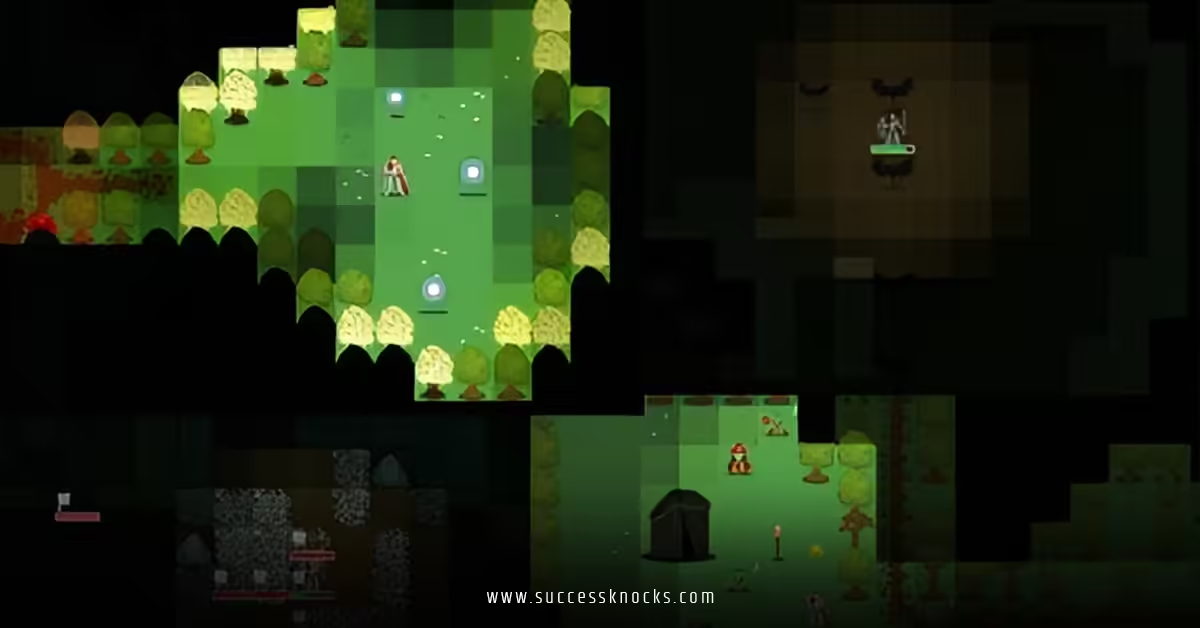
Implementing dynamic fog of war in Unity for RTS games 2025 has never been more exciting—or more necessary—than right now. With Unity 6 out in the wild, HDRP and URP pushing visual fidelity through the roof, and players expecting that perfect blend of strategy and mystery, a rock-solid, performant fog of war system can make or break your real-time strategy title. Let’s roll up our sleeves and build something beautiful, shall we?
Why Dynamic Fog of War Still Matters in RTS Games in 2025
Think about StarCraft II, Age of Empires IV, or even newer indie hits like Stormgate. What ties them all together? That delicious tension created when you can’t see everything. Fog of war isn’t just a visual effect—it’s a core gameplay pillar. In 2025, players demand smoothness: no stuttering when 500 units reveal the map, no ugly square artifacts, and definitely no “I can see through mountains” bugs. Implementing dynamic fog of war in Unity for RTS games 2025 means delivering exploration thrill without sacrificing the 60+ FPS your community expects.
Core Concepts You Need Before Implementing Dynamic Fog of War in Unity for RTS Games 2025
There are two classic flavors:
- Hard Fog – Completely black unexplored areas.
- Soft Fog (aka “fog of war” proper) – Grayed-out explored but currently unseen terrain.
The “dynamic” part? Vision updates in real time based on unit line-of-sight, buildings, elevation, and even temporary abilities (scans, observers, reveal wards). That’s the magic we’re chasing when implementing dynamic fog of war in Unity for RTS games 2025.
Vision Sources You’ll Likely Support
- Circular vision around units and buildings
- Line-of-sight blocking by terrain height and obstacles
- Vision height bonuses (units on hills see farther)
- Flying units that ignore ground clutter
- Temporary reveal effects
Choosing the Right Technical Approach in Unity 2025
By 2025, the old “paint on a texture with brushes” method still works, but we have far better tools. Here are the three main paths people actually use today:
Method 1: Render Texture + Shader (Most Popular in 2025)
This is the gold standard for most mid-to-large RTS projects.
How it works:
- Create a top-down orthographic camera that renders ONLY vision providers (units, buildings) into a Render Texture using a custom shader.
- Use that Render Texture as a mask inside a global fog shader applied to terrain and props.
Pros: Super smooth gradients, easy blending, works great with HDRP/URP.
Cons: Requires shader knowledge.
Method 2: Compute Shader Grid (Best for Massive Maps)
Perfect when you have 512×512 or larger maps and thousands of units.
How it works:
- Store vision in a 1-px-per-tile compute buffer.
- Update vision cells every frame using a compute shader.
- Sample the buffer in your terrain shader.
Pros: Insanely fast, perfect memory layout.
Cons: Steeper learning curve.
Method 3: Unity’s Built-in Post-Processing + Custom Volume (Quick & Dirty)
You can actually fake decent results with Post Processing and a custom Volume mask, but it breaks down once you need true line-of-sight blocking.
We’ll focus on Method 1 today because it strikes the perfect balance for 90% of teams implementing dynamic fog of war in Unity for RTS games 2025.
Step-by-Step: Implementing Dynamic Fog of War in Unity for RTS Games 2025 (Render Texture Method)
Step 1: Set Up the Vision Camera
// Create an orthographic camera that looks straight down
GameObject visionCamGO = new GameObject("Vision Camera");
Camera visionCam = visionCamGO.AddComponent<Camera>();
visionCam.orthographic = true;
visionCam.orthographicSize = mapSize / 2f;
visionCam.clearFlags = CameraClearFlags.SolidColor;
visionCam.backgroundColor = Color.black;
visionCam.cullingMask = LayerMask.GetMask("VisionProviders");
visionCam.targetTexture = yourRenderTexture;
Step 2: Create the Render Texture
- Format: R8 or ARGB32
- Filter Mode: Bilinear
- Size: Usually 1024×1024 or 2048×2048 depending on map size
- Enable “Random Write” if you plan to read it back on CPU later
Step 3: Vision Provider Shader (Unlit + Additive)
Create a simple unlit shader that outputs white inside vision radius and black outside. Here’s the core fragment:
float distance = length(input.positionWS.xz - _Center.xz);
float radius = _VisionRange;
fixed4 col = fixed4(1,1,1,1);
col.rgb *= saturate(1 - distance / radius);
return col;
Make it additive blend so overlapping units brighten the mask—perfect for smooth falloff.
Step 4: Global Fog of War Shader (Apply to Terrain)
Grab the standard Unity terrain shader or write a simple one:
Properties {
    _MainTex ("Terrain Texture", 2D) = "white" {}
    _VisionTex ("Vision Mask", 2D) = "black" {}
    _FogColor ("Fog Color", Color) = (0.15, 0.15, 0.18, 1)
    _ExploredColor ("Explored Gray", Color) = (0.3, 0.3, 0.35, 1)
}

float mask = tex2D(_VisionTex, uv).r;

// Currently seen
if (mask > 0.9) {
    // Show full color
}
// Explored but not seen
else if (mask > 0.1) {
    // Desaturate + darken + overlay gray fog
    fixed3 base = tex2D(_MainTex, uv).rgb;
    fixed3 gray = dot(base, float3(0.299, 0.587, 0.114));
    col.rgb = lerp(gray * 0.6, _ExploredColor.rgb, 0.4);
}
// Never explored
else {
    col.rgb = _FogColor.rgb;
}
Step 5: Handling Line of Sight and Elevation
Here’s where it gets spicy. Simple circle vision is easy, but true LOS changes everything.
Option A (Fast): Use Unity’s Physics2D.OverlapCircleAll with a CircleCollider2D “vision blocker” layer on cliffs and buildings.
Option B (Accurate & Pretty): Implement shadow casting in your vision camera using a custom shader that casts shadows based on heightmap + obstacle objects. Many teams in 2025 use a second render pass that renders blockers in black with a custom replacement shader.
Step 6: Reveal History (Explored Areas)
You need a second Render Texture that never gets cleared—only painted white when a new area is first seen.
// On first reveal
Graphics.Blit(visionRT, exploredRT, revealMaterial); // revealMaterial just outputs white
Then sample both textures in your final fog shader.
Performance Tips That Actually Matter in 2025
Implementing dynamic fog of war in Unity for RTS games 2025 without murdering frame rate is an art. Here’s what separates the pros:
- Batch all vision providers into as few draw calls as possible (GPU instancing + SRP Batcher).
- Update vision only every 0.1–0.2 seconds for distant units (players won’t notice).
- Use half-resolution vision textures (1024×1024 for a 512×512 map is plenty).
- Move expensive LOS checks to a Job System + Burst thread.
- Consider spatial partitioning (grid or quadtree) so you’re not checking every unit against every blocker.
Advanced Tricks Top Studios Use in 2025
Dynamic Vision Range Modifiers
Weather system reduces vision by 30%? Night time? Easy—just drive _VisionRange from script.
Temporary Reveal Effects
Drop a scanner sweep? Render a growing ring with a different replacement shader for 5 seconds.
Mini-Map Integration
Your mini-map fog is literally just a UI RawImage displaying the exploredRT with a slight blur. Done.
Multiplayer Sync
Only send vision changes when tiles flip state (unexplored → explored, explored → seen/lost). Compress with RLE. Most 2025 RTS netcode sends <5 KB/s even in 8-player games.
Common Pitfalls & How to Avoid Them
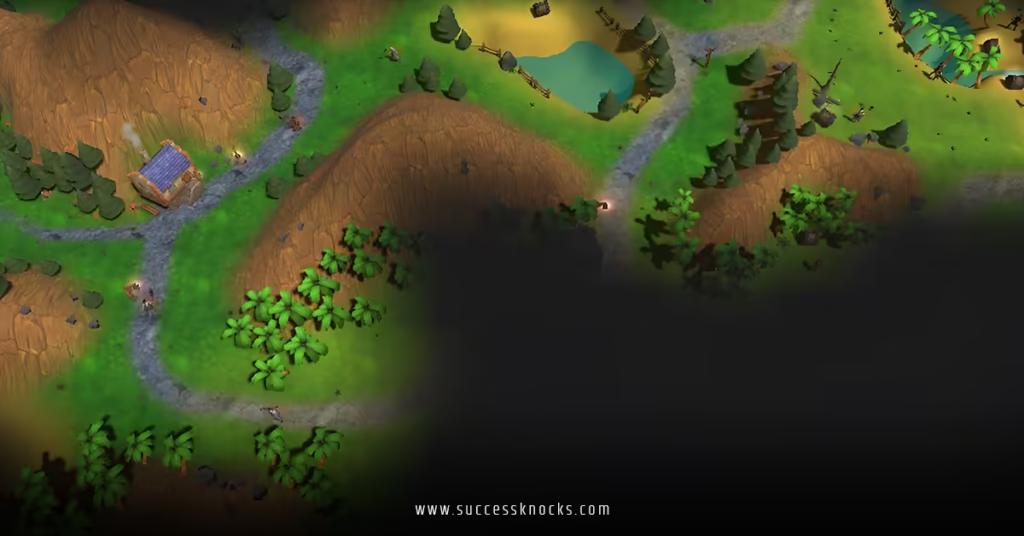
- Fog leaking through mountains → Always use actual geometry or a height-based shadow caster.
- Janky edges → Use bilinear filtering + slight blur on the vision texture.
- Performance death on mobile → Drop to 512×512 vision texture and update every 0.3 s.
- Units “seeing” through buildings they’re standing next to → Offset vision origin slightly upward or use capsule checks.
Testing Your Fog of War Like a Pro
- Create a debug overlay that shows the raw vision Render Texture in the corner.
- Add a “god mode” key that toggles full reveal.
- Fly a camera around at crazy speeds—any stuttering means your update rate is too high.
Tools & Assets That Save You Months (2025 Edition)
While I always recommend building your own (you’ll learn way more), these are solid starting points:
- Unity’s Official RTS Sample (free, includes basic fog)
- Fog of War System by Kronnect (paid, very polished)
- Compute Shader FOW by Rad-Coders (if you want pure performance)
Conclusion: Your RTS Deserves This
Implementing dynamic fog of war in Unity for RTS games 2025 isn’t just another checkbox—it’s the feature that turns a good strategy game into a legendary one. When done right, players feel smart when they scout properly, terrified when the fog closes in, and exhilarated on that first big reveal push. You now have a complete roadmap: from basic render-texture masking to advanced LOS shadow casting and multiplayer sync. Grab Unity 6, fire up a new project, and start painting darkness. Your players will thank you every time they nervously edge a scout into the unknown.
FAQs About Implementing Dynamic Fog of War in Unity for RTS Games 2025
Q1: Is the old 2018-style “paint on texture with brushes” method dead in 2025?
Not dead, but definitely outdated for anything beyond tiny prototype maps. Modern players spot those hard brush edges instantly.
Q2: Can I implement true line-of-sight blocking without writing complex shaders when implementing dynamic fog of war in Unity for RTS games 2025?
Yes—use Unity’s 2D lighting system with shadow casters on a separate layer and feed that into your vision camera. It’s surprisingly decent and requires almost no shader code.
Q3: How much video memory does a proper dynamic fog of war system use in 2025?
Typically two 2048×2048 R8 render textures (~8 MB total) plus a couple of small compute buffers. Negligible on modern GPUs.
Q4: Will implementing dynamic fog of war in Unity for RTS games 2025 work the same in URP vs HDRP?
Almost identical. The only difference is how you inject your custom pass (UniversalRendererFeature vs Custom Render Pass). Code is 95% reusable.
Q5: Any quick win for instant visual polish?
Add a very subtle animated noise texture scrolling slowly under the explored gray fog. Instantly feels alive—like breathing darkness.
For More Updates !! : Successknocks.com


