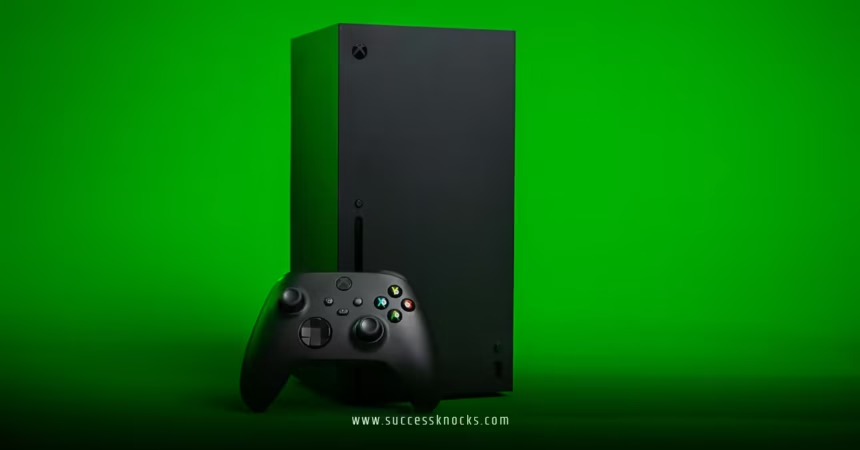
Xbox Game Pass Ultimate storage management tips can make or break your gaming experience. With over 100 games available at any time and modern titles pushing 100+ GB each, you’ll hit storage walls faster than you think. Smart storage management keeps your favorite games ready to play while making room for new discoveries.
Here’s what matters most for Xbox Game Pass Ultimate subscribers:
- Cloud storage saves your progress across all devices automatically
- Smart Delivery optimizes downloads for your specific console
- External storage expands capacity without breaking the bank
- Game streaming reduces local storage needs for many titles
- Strategic uninstalling and reinstalling keeps your library fresh
Understanding Xbox Game Pass Ultimate Storage Basics
Storage management isn’t just about deleting games when you’re full. It’s about creating a system that works with how you actually play.
Your Xbox console comes with internal storage that’s blazing fast but limited. Series X packs 1TB, Series S gives you 512GB. Sounds like plenty until you realize the operating system claims around 20% right off the bat.
The real kicker? Modern games are massive. Call of Duty can eat 200GB. Flight Simulator demands 150GB. Forza Horizon 5 wants 110GB. Do the math and you’re looking at maybe 8-12 major games before you’re tapping out.
But here’s where Xbox Game Pass Ultimate shines differently than traditional game ownership. You’re not married to keeping everything installed forever.
Quick Storage Assessment: Where You Stand Right Now
Before diving into management strategies, check your current situation:
- Navigate to Settings > System > Storage
- Review what’s consuming space
- Identify games you haven’t touched in 30+ days
- Note any apps or content you forgot existed
Most players discover they’re hoarding games “just in case.” That mentality kills storage efficiency.
Smart Storage Solutions for Xbox Game Pass Ultimate Subscribers
Internal vs External Storage: Making the Right Choice
Internal storage delivers the fastest performance. Your console’s SSD loads games in seconds, not minutes. Save internal space for:
- Current rotation games you play weekly
- Competitive multiplayer titles where load times matter
- Quick Resume games you switch between regularly
External storage offers massive capacity at lower cost. Modern external drives work great for:
- Single-player campaigns you’ll finish and move on from
- Backup storage for games you might revisit later
- Game Pass games you want to try but aren’t committed to
The Game Pass Ultimate Storage Hierarchy
Think of your storage like a closet. Keep everyday clothes easily accessible, seasonal items in the back, and rarely-used stuff in storage.
Tier 1 – Internal SSD (Hot Storage) Your daily drivers. Games you’re actively playing or will play this week.
Tier 2 – External SSD (Warm Storage) Games you’re working through or might jump into soon.
Tier 3 – Cloud/Uninstalled (Cold Storage) Everything else. Game Pass Ultimate’s cloud saves mean you can reinstall anytime without losing progress.
Step-by-Step Xbox Game Pass Ultimate Storage Management Plan
Phase 1: Clean House (30 minutes)
- Launch each installed game and verify cloud save sync
- Uninstall games untouched for 45+ days – be ruthless here
- Remove apps you don’t use (Netflix, Spotify, etc. if unused)
- Clear capture gallery of old screenshots and clips
- Review “Ready to Install” queue and remove unwanted items
Phase 2: Set Up Your System (15 minutes)
- Configure external storage if you have it
- Set download preferences to pause when playing games
- Enable “Keep my games & apps up to date” for convenience
- Turn off auto-record features if you don’t use them
Phase 3: Establish Rules (Ongoing)
Follow the “One In, One Out” rule. Installing something new? Remove something old first.
Set monthly reviews. First weekend of each month, assess what stays and what goes.
Advanced Xbox Game Pass Ultimate Storage Management Tips
Smart Delivery: Your Secret Weapon
Smart Delivery automatically downloads the right version for your console. Series S gets smaller files than Series X. This saves 20-40% space on many titles without you thinking about it.
When given options during installation, always choose your console’s optimized version. Don’t download Series X versions on Series S hardware.
Game Streaming vs Local Installation Strategy
Xbox Cloud Gaming changes the storage game entirely. Stream games to test them first. Love it? Then install locally for best performance.
| Game Type | Recommended Storage |
|---|---|
| Competitive Multiplayer | Internal SSD |
| Single-Player RPGs | External or Stream |
| Indie/Smaller Games | Internal SSD |
| One-Time Campaigns | Stream First |
| Family/Party Games | External Storage |
Some games stream better than others. Fast-paced shooters benefit from local installation. Turn-based games work fine streamed.
The Game Pass Ultimate Archive Method
Create a mental archive system:
Currently Playing – Maximum 5 games installed locally Recently Finished – Keep for 2 weeks, then uninstall Multiplayer Staples – Keep indefinitely if you play regularly Seasonal Returns – Uninstall until you’re ready to replay
This prevents the “digital hoarding” that kills storage efficiency.
Storage Expansion Options That Actually Make Sense
External Hard Drives: Budget-Friendly Bulk Storage
A quality 2-4TB external drive costs $60-120. That’s massive capacity for storing Game Pass titles you’re not actively playing.
Look for drives with 7200 RPM speeds minimum. USB 3.0 connection is essential. Microsoft’s compatibility list shows tested options that work reliably.
Seagate Storage Expansion Cards: Premium Performance
Official expansion cards match internal SSD performance but cost $150-300. Worth it if you need that speed for multiple demanding games simultaneously.
Only buy expansion cards if external drives don’t meet your needs. Most Game Pass Ultimate subscribers do fine with external storage.
Network Storage: The Future-Forward Option
Fast internet changes everything. With 100+ Mbps download speeds, reinstalling games takes 30-60 minutes instead of hours.
This makes the “uninstall and reinstall as needed” approach much more practical than it was five years ago.

Common Xbox Game Pass Ultimate Storage Mistakes (And How to Fix Them)
Mistake #1: Keeping Everything Installed “Just in Case”
The Fix: Accept that you can’t play everything simultaneously. Game Pass Ultimate’s cloud saves mean reinstalling never loses progress.
Mistake #2: Storing Games You’ll Never Replay
The Fix: Be honest about your gaming habits. Most players finish single-player campaigns once and move on.
Mistake #3: Ignoring External Storage Because It’s “Slower”
The Fix: External storage works great for 80% of games. Save internal space for what truly needs it.
Mistake #4: Not Using Cloud Gaming to Test Games
The Fix: Stream first, download second. This prevents wasting space on games you’ll play for 20 minutes and abandon.
Mistake #5: Forgetting About Save Game Sync
The Fix: Always verify cloud saves before uninstalling. Most games sync automatically, but double-checking takes 30 seconds.
Managing Storage Across Multiple Devices
Xbox Game Pass Ultimate works on console, PC, and mobile. Smart management considers all your devices:
- Console: Primary gaming, needs largest storage
- PC: Different game library, often smaller files
- Mobile/Tablet: Cloud gaming only, no local storage needed
Sync your “currently playing” list across devices. Don’t install the same games everywhere unless you actively play on all platforms.
Your cloud saves work across all devices, so you can start a game on console and continue on PC without any storage juggling.
Key Takeaways for Xbox Game Pass Ultimate Storage Management
- Treat storage like a monthly subscription – actively manage what you keep
- Use external drives for bulk storage of games you’re not actively playing
- Stream games first to test them before committing storage space
- Keep 5-7 active games maximum on internal storage
- Trust cloud saves – they make reinstalling painless
- Set monthly storage reviews to prevent accumulation
- Match storage type to game priority – internal for favorites, external for everything else
- Don’t hoard completed single-player games unless you plan to replay them
Building Long-Term Storage Habits
The best Xbox Game Pass Ultimate storage management happens automatically through good habits, not constant micromanaging.
Set up systems that work with your gaming style. If you’re a completionist who plays one game at a time, keep minimal installs. If you’re a sampler who jumps between games, invest in external storage.
Remember that Game Pass Ultimate’s value comes from variety and discovery. Don’t let storage limitations prevent you from trying new games. The whole point is having options.
Your gaming time is precious. Spend it playing, not managing files.
Frequently Asked Questions
Q: How many games can I realistically keep installed on Xbox Series X with Xbox Game Pass Ultimate storage management tips?
A: With smart storage management, expect 8-12 major AAA games on Series X internal storage. Add external storage and you can keep 30-50 games ready to play, depending on file sizes.
Q: Will I lose my progress if I uninstall Xbox Game Pass games?
A: No, your progress saves to the cloud automatically with Xbox Game Pass Ultimate. You can reinstall any game later and continue exactly where you left off.
Q: Should I buy the official Seagate expansion card or use external hard drives?
A: Most players do fine with external hard drives for $60-120. Only buy the $200+ expansion card if you need Series X optimization for many games simultaneously.
Q: Can I play Xbox Game Pass games directly from external storage?
A: Xbox One games run fine from external storage. Series X|S optimized games must be on internal storage or expansion cards to run, but you can store them externally and move them when needed.
Q: How do I know which Xbox Game Pass Ultimate storage management tips work best for my gaming habits?
A: Track what you actually play for 2-3 weeks. Most players discover they actively play 3-5 games while hoarding 20+ “just in case” games they never touch.